

Tired of cleaning up form submissions packed with profanity, competitors, or spam? You don’t need another blunt anti-spam plugin, you need full control.
Clio Banned Words plugin lets you define the rules, block the noise, and keep Elementor forms focused on real customers. Here is how to download and use our free plugin to block unwanted words from Elementor forms.
The Challenge: Unwanted Form Submissions
If you’ve built websites with Elementor and its powerful forms, you’ve likely encountered the frustration of spam submissions, inappropriate content, or users submitting forms with language that doesn’t align with your community guidelines. While there are general spam protection solutions, they often lack the specificity to target exact words or phrases you want to block.
That’s why we developed Clio Banned Words – a simple, lightweight, focused WordPress plugin that gives you control over what words cannot appear in your Elementor Forms submissions.

What is Clio Banned Words?
Clio Banned Words is a specialized WordPress plugin that seamlessly integrates with Elementor forms to prevent submissions containing any words from your custom banned list. Whether you need to block profanity, spam, specific products, or any other undesirable terms, this plugin will help you minimize the odds of that happening.
Key Features:
- Custom Word List: Define your own set of banned words or phrases
- Flexible Validation: Works with text fields and textareas
- Smart Detection: Catches banned words within longer text
- Customizable Error Display: Choose how validation errors are displayed
- Easy Administration: Simple settings page under the Elementor menu
- Lightweight: No impact on site performance
How to Install and Use
Installation
- Download the Plugin
Download Clio Banned Words Plugin - Upload to WordPress
- Navigate to WordPress Admin → Plugins → Add New
- Click “Upload Plugin” and select the downloaded ZIP file
- Activate the plugin
- Configure Settings
- Go to Elementor → Banned Words in your WordPress admin
- Enter your banned words, separated by commas
- Configure display options for error messages
- Save your settings
Configuration
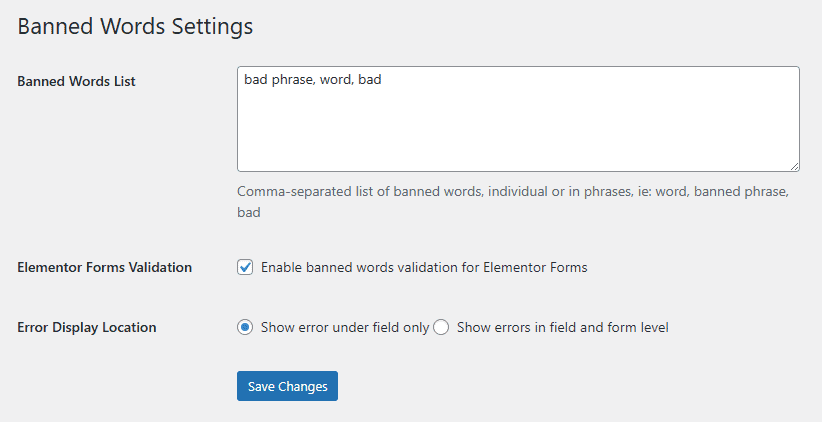
In the settings page, you can add banned words or phrases or a combination of both, like:
competitor, lottery, casino, inappropriate, unwanted phrase, spamThe plugin will then block any form submission containing these terms, whether they appear as standalone words or within longer text.
Error Handling Options
Choose how validation errors are displayed:
- Field-level errors: Show error messages next to specific fields (recommended)
- Form-level errors: Display a general form error message
- Both: Combine both approaches for maximum clarity
Perfect For:
- Business websites blocking competitor mentions
- Educational platforms maintaining appropriate language
- Community sites enforcing content guidelines
- E-commerce stores preventing specific product mentions
- Any Elementor user wanting more control over form content
Technical Details
The plugin hooks into Elementor Pro’s form validation system, checking submissions before they’re processed. It’s built with WordPress coding standards and includes proper security measures like nonce verification and input sanitization.
You can toggle Elementor Forms validation on or off without deactivating the plugin. This is useful for testing or temporarily allowing all submissions.
Requirements:
- WordPress 5.8 or higher
- Elementor Pro with Forms functionality
- PHP 8.1 or higher
Get Started Today
Take control of your Elementor form submissions and maintain the quality of content on your website. Download the Clio Banned Words now and say goodbye to unwanted form submissions.
Why Clio
At Clio Websites, we love WordPress. We have been maintaining and developing WordPress websites since 2011. We have a ton of experience delivering all kinds of WordPress projects and we support several hundred websites every month.
We hope that our tool helps you limit spam on your website. If you have any further questions or need WordPress help, please get in touch with us.
Note: This plugin requires Elementor Pro with the Forms feature. It won’t work with the free version of Elementor or other form plugins.