

Are you looking for a way to easily duplicate a page in WordPress? In this article, we will show you how to do just that.
WordPress Duplicate Page – The Why
WordPress is a great tool for creating a managing content. It’s one of the most popular CMSs for a reason. Using WordPress you can create and manage website content (pages), blog content (posts), and if you are using it for ecommerce you can also create and sell products.
In some cases, you may want to quickly make a copy of existing content (a page, post, or product), and use it as a starting point. This is where the WordPress duplicate page method comes in. There are several ways that you can accomplish this in WordPress.
In this article, we will show you a few, including our preferred method.
Option 1 – The plugin route
Our favorite and simplest way to duplicate almost anything in WordPress is to use the WordPress Duplicate Page plugin. You can install and activate this free and lightweight plugin in no time.
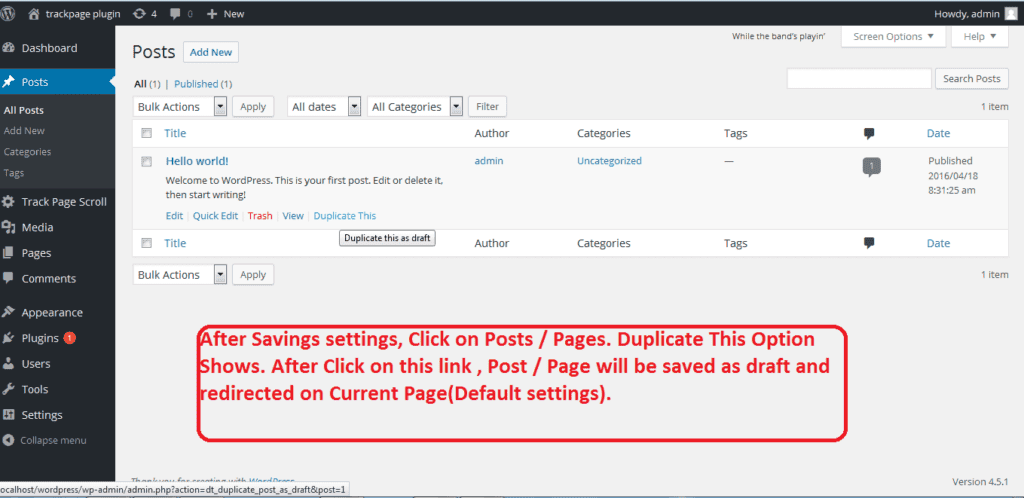
Don’t let the name fool you. This plugin can duplicate pages, posts, products, and even Elementor templates. Once you install and activate this plugin, you will see an option to duplicate any object by clicking Duplicate This (see screenshot below).
Click on the Duplicate This button to create a copy of the content which will be stored in Draft mode. After you make changes to the new duplicated copy, make sure you hit the Publish button.
Here is a YouTube video explaining how to go through this process quickly and easily:
Option 2 – Duplicate content manually
You can also duplicate content manually by copying and pasting the page content. This approach will depend on whether you are using the Gutenberg block editor, Elementor, or something else, but the steps are more or less the same.
Follow these steps to duplicate pages or posts in WordPress using the block editor:
- Create a new page or post manually
- Open the page or post you want to duplicate
- In the block editor, click on the three dots in the top right of the page
- Select the Copy all content option
- In the new page or post (created in step 1), paste all of the content that you copied
- Update and save the page / post settings and click on Publish
Option 3 – Duplicate content using code
It’s also possible to add the duplicate page feature by adding some code to your website. You have to be comfortable with working with child themes and adding code to your theme’s functions.php file.
In your child theme, open the functions.php file and add the following code:
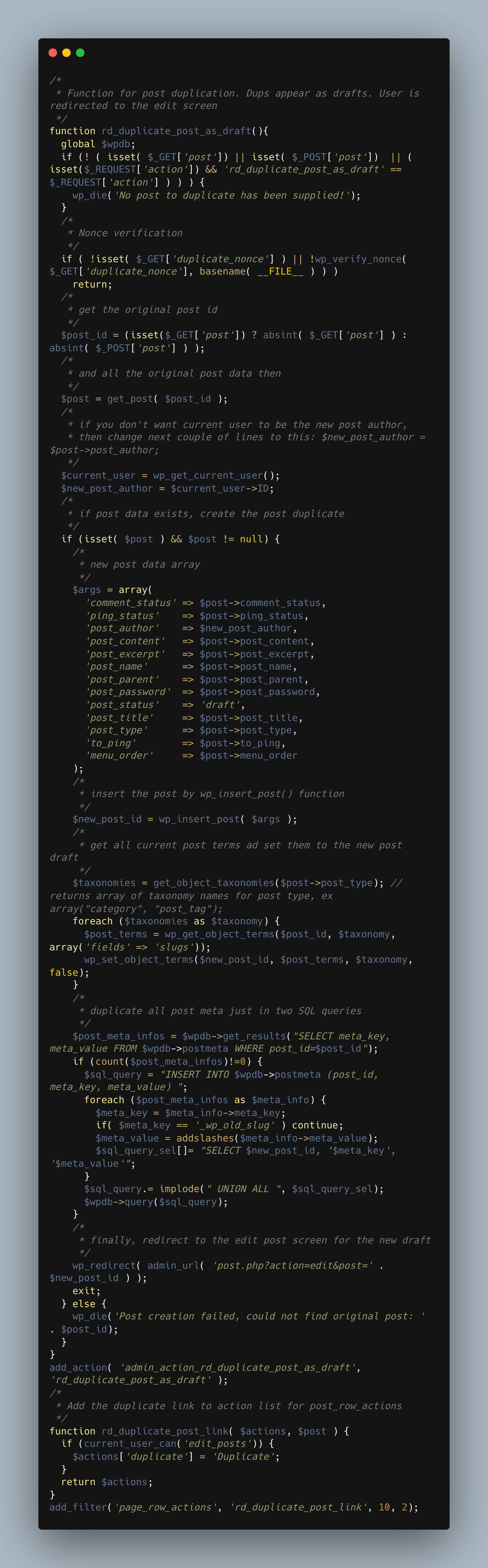
Source code: https://pastebin.com/6qYASRLH
Save the file and you will now see a Duplicate option when you scroll over the pages in WordPress. Note that this code option only works for duplicating pages.

Option 4 – Duplicate content using Elementor Pro
There are a few ways to duplicate WordPress content using Elementor. Elementor is a really flexible builder and you can copy and paste objects easily across pages, and even across different websites.
All you have to do is select a section, right-click on it, and select copy (see the screenshot below).
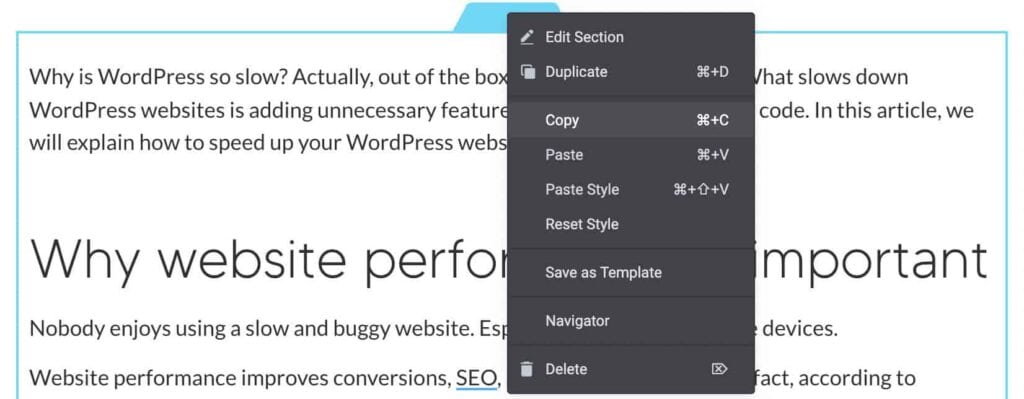
Create a new Elementor page or post and open the editor. On your new page right click on the plus sign in the “drag widgets here” section, and select Paste.

There is an even easier way to duplicate content in Elementor. If you have the pro version of Elementor, you can also duplicate WordPress content using the export and import feature. You can also create templates using Elementor and apply them across your website easily and quickly.
Step 1
Step 2
Step 3
Step 4
Step 5
Conclusion
We hope that this blog post has helped you explore some popular WordPress duplicate page options. Duplicating pages, posts, and products should be a core functionality of WordPress, but it hasn’t made its way into the core version yet. But with these easy steps, you can duplicate anything in WordPress quite easily.
Check out our blog for more articles like this, or contact us if you have any questions.
About Clio Websites
Clio Websites is a full-service website design and marketing company in Calgary. We have vast experience in responsive website design, website maintenance, WordPress development and support, and SEO.
Clio offers free consultations and free website evaluations and we receive glowing reviews from our clients. We are Calgary web design experts, so don’t hesitate to get in touch with us.